New article
Recently updated
Managing a test

Who is this article for?
Users who need to administer a test.
Risk module access is required.
This article shows you how to update, archive, or delete tests from your system. You can edit an existing test even once it has been activated, and you also have the option to archive or remove tests to keep your records clear.
Managing a test
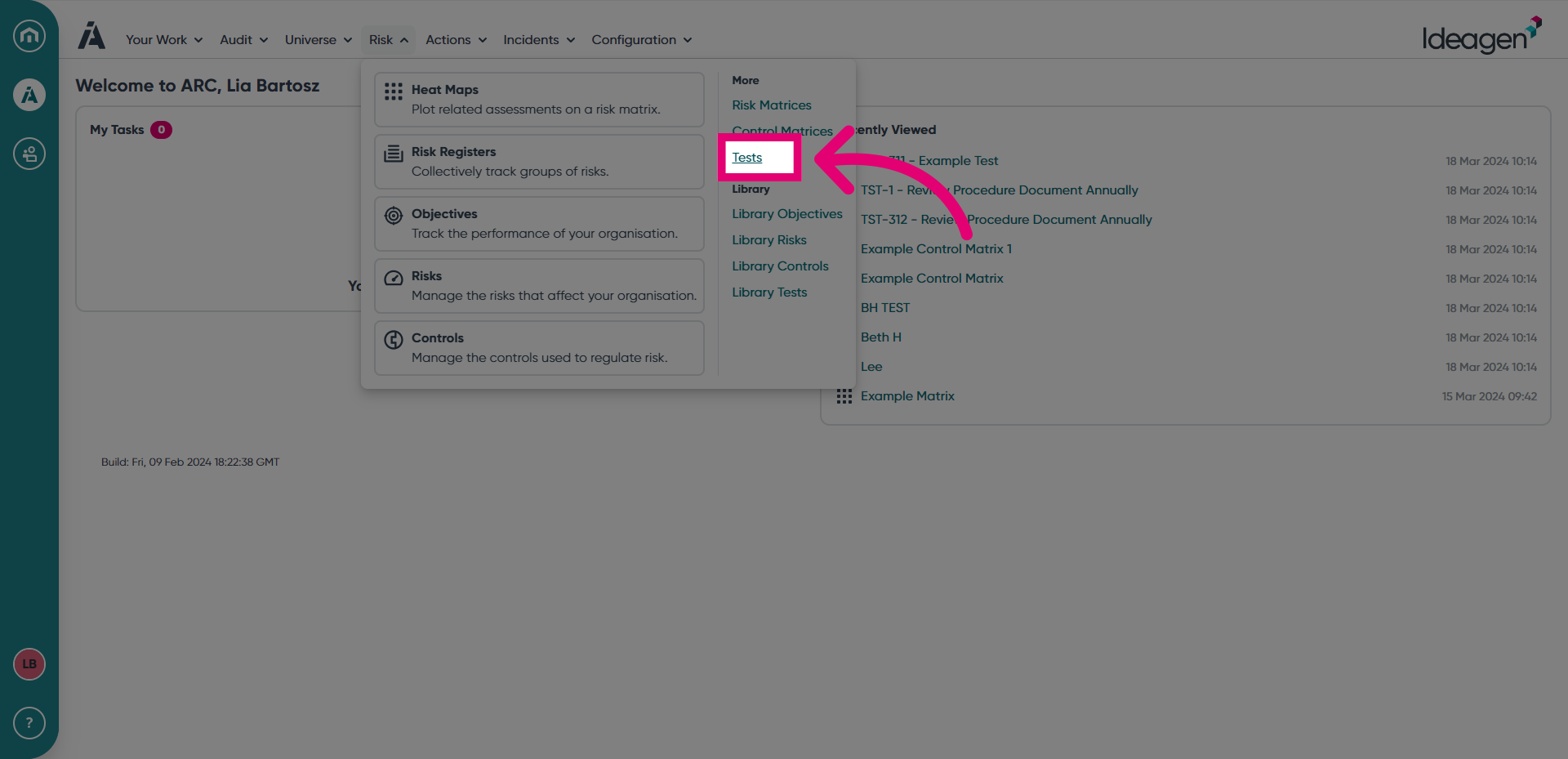
- To edit a test, access the Risk menu.
- Select Tests.
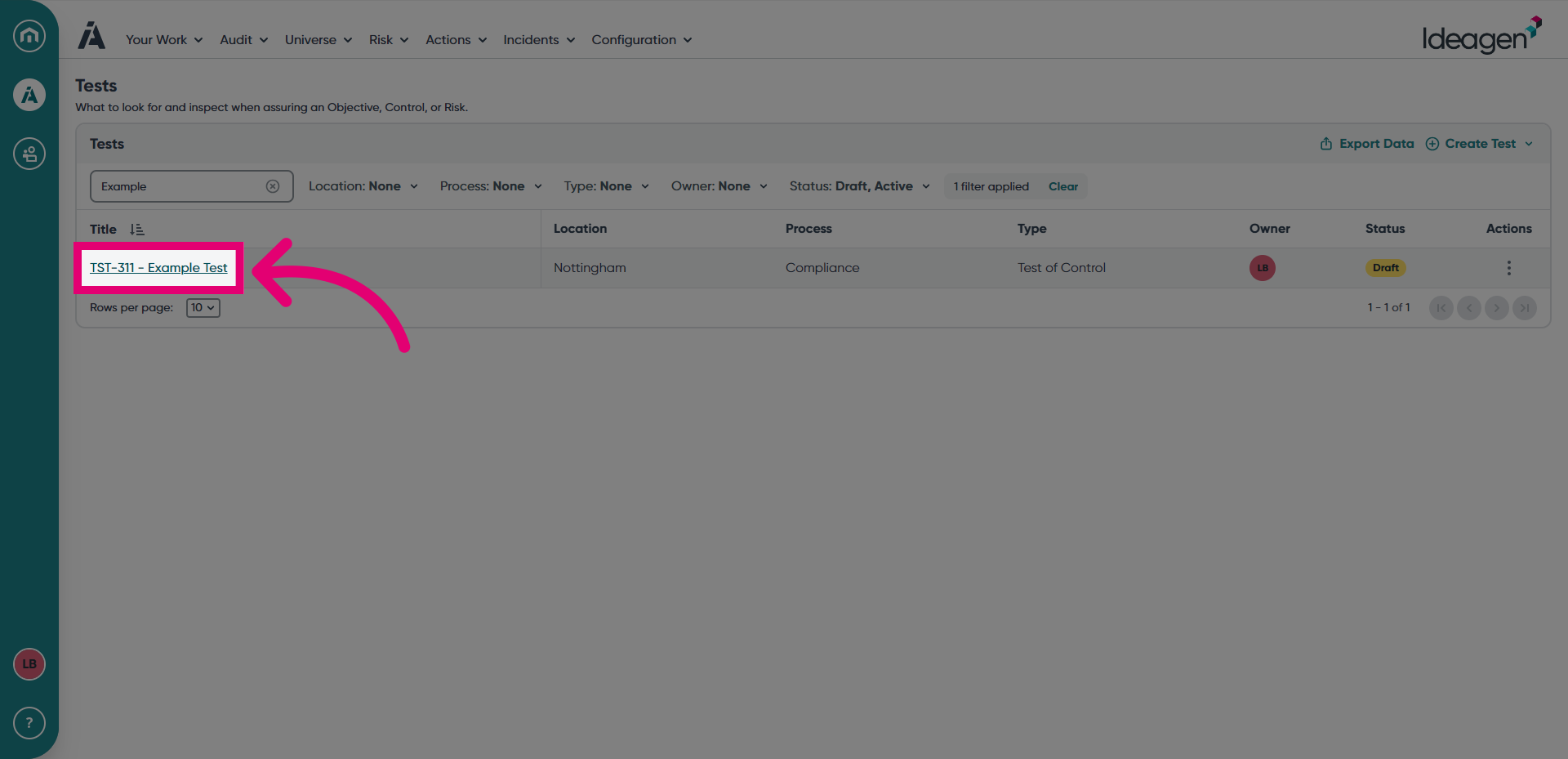
- Open the test you want to edit.
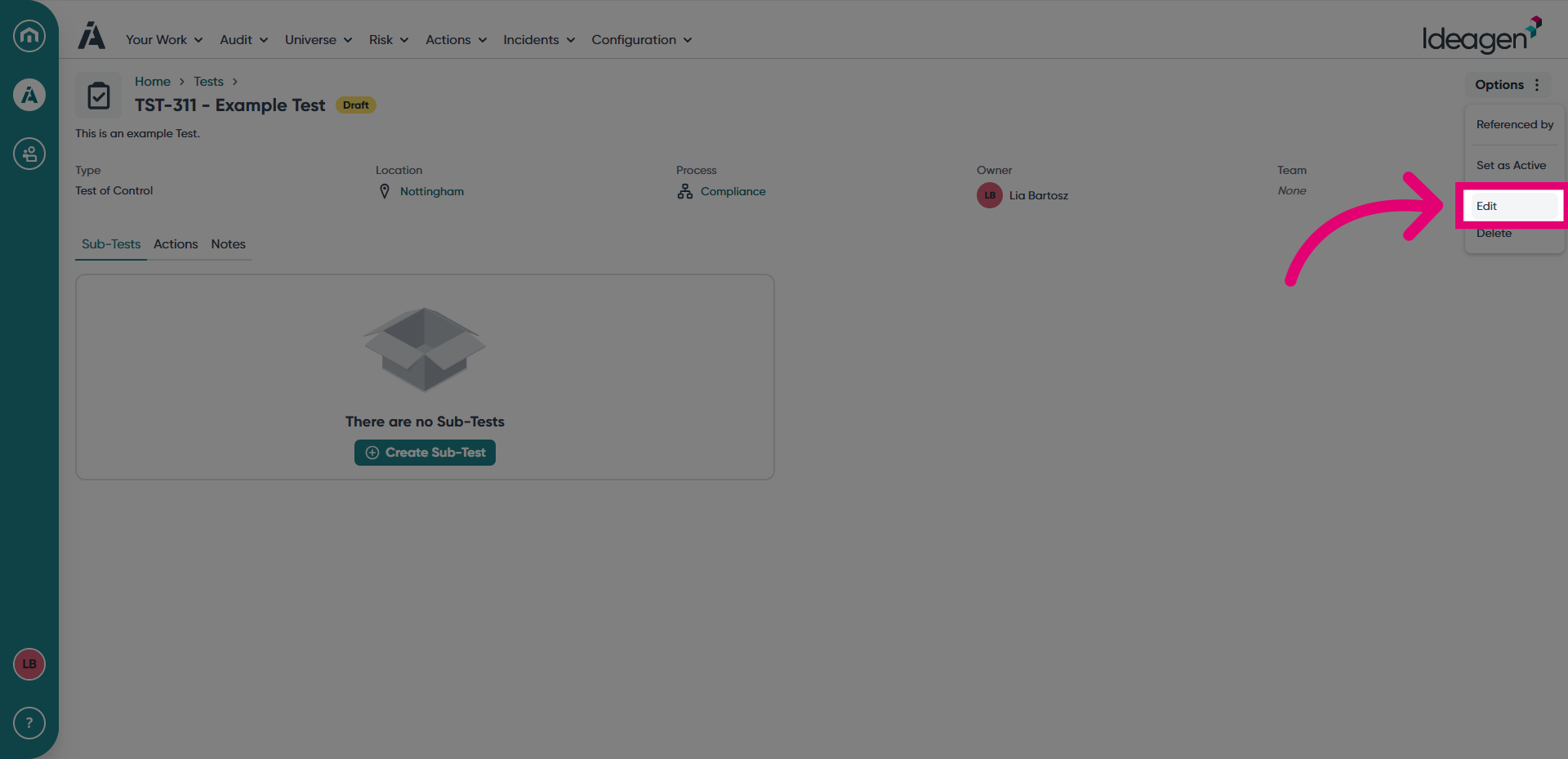
- Click Options.
- Choose Edit.
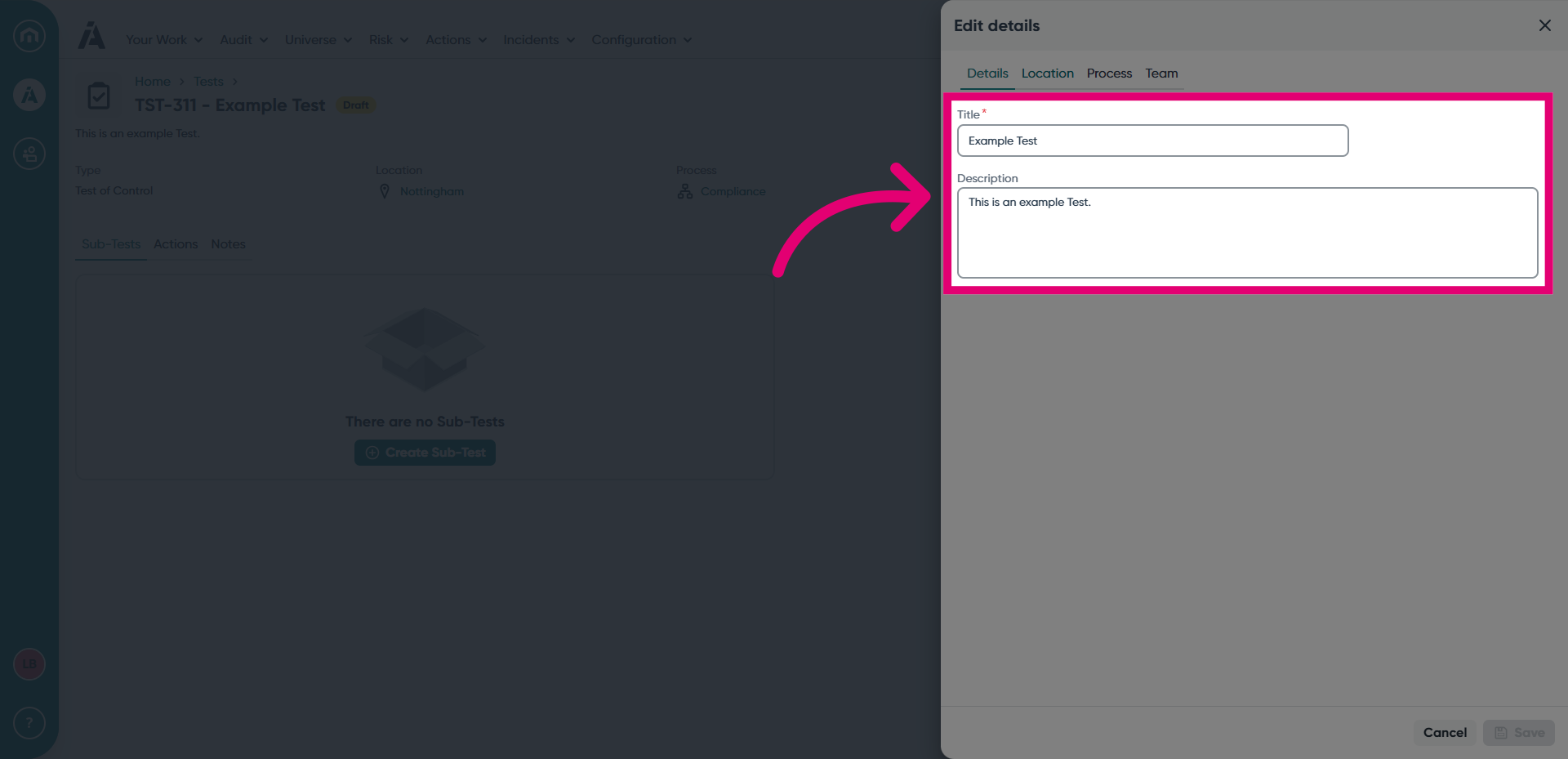
- Update the Title and Description as needed, in the Details tab.
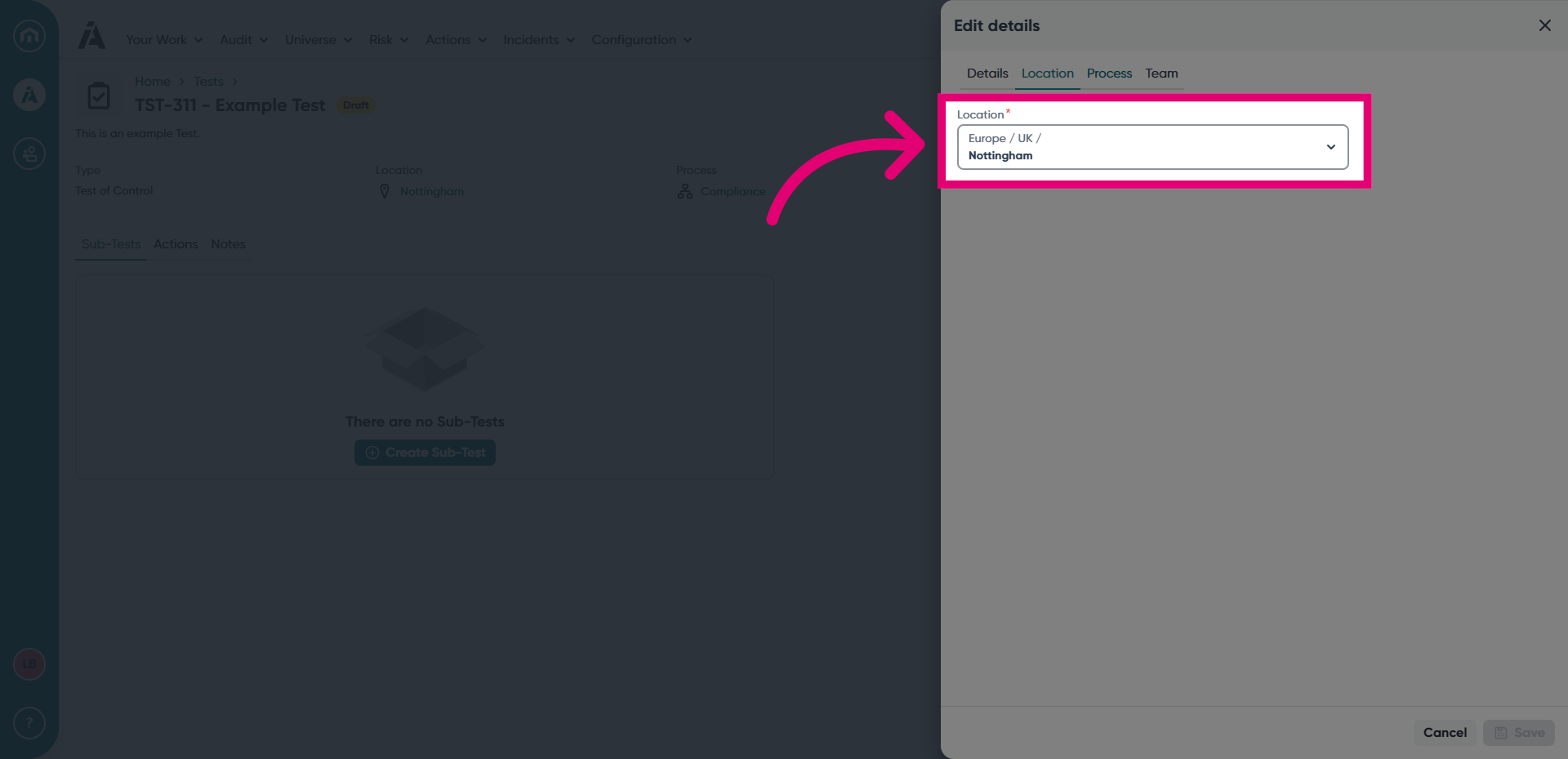
- Change the Location, in the Location tab.
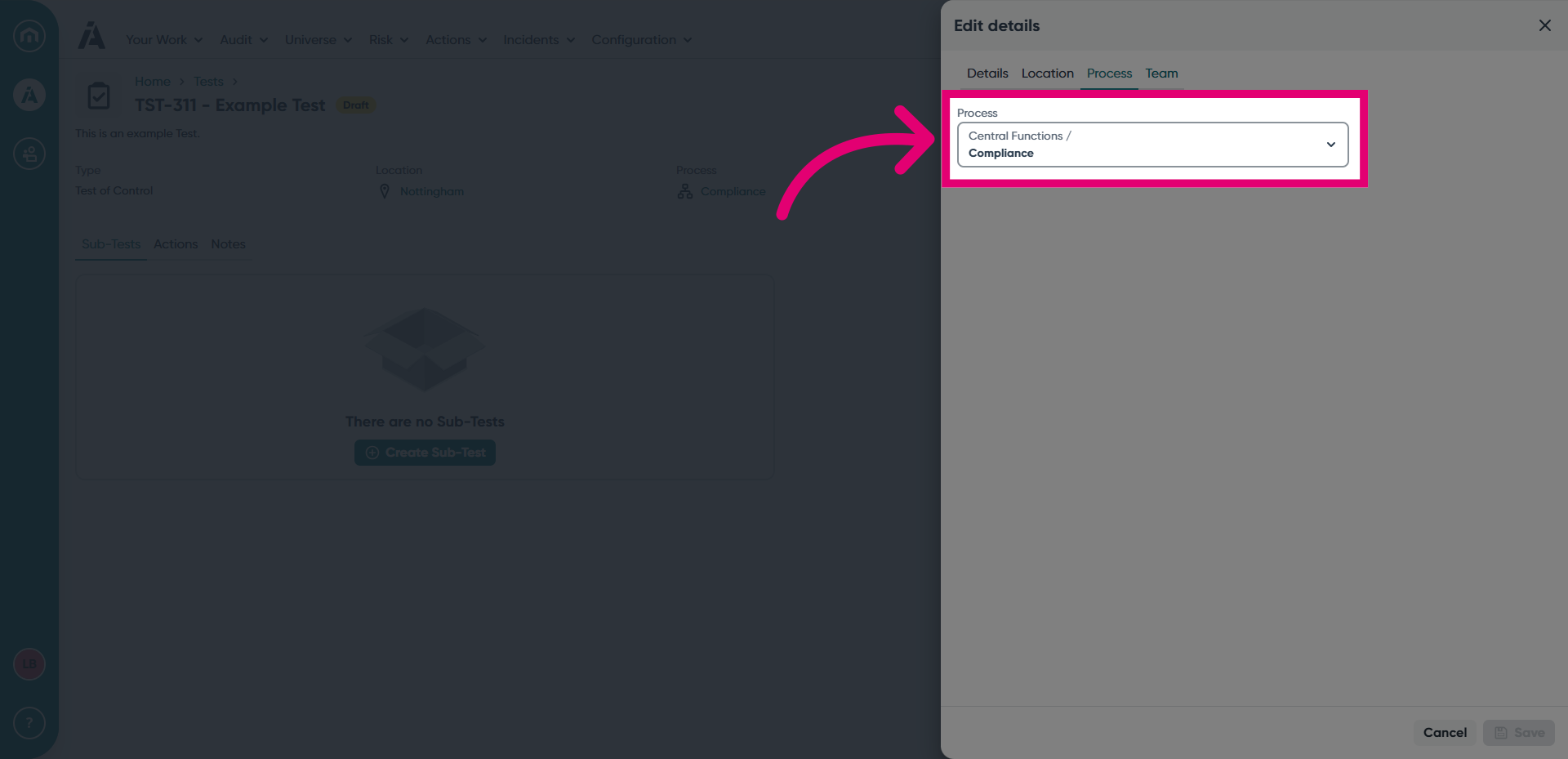
- Assign a new Process, in the Process tab.
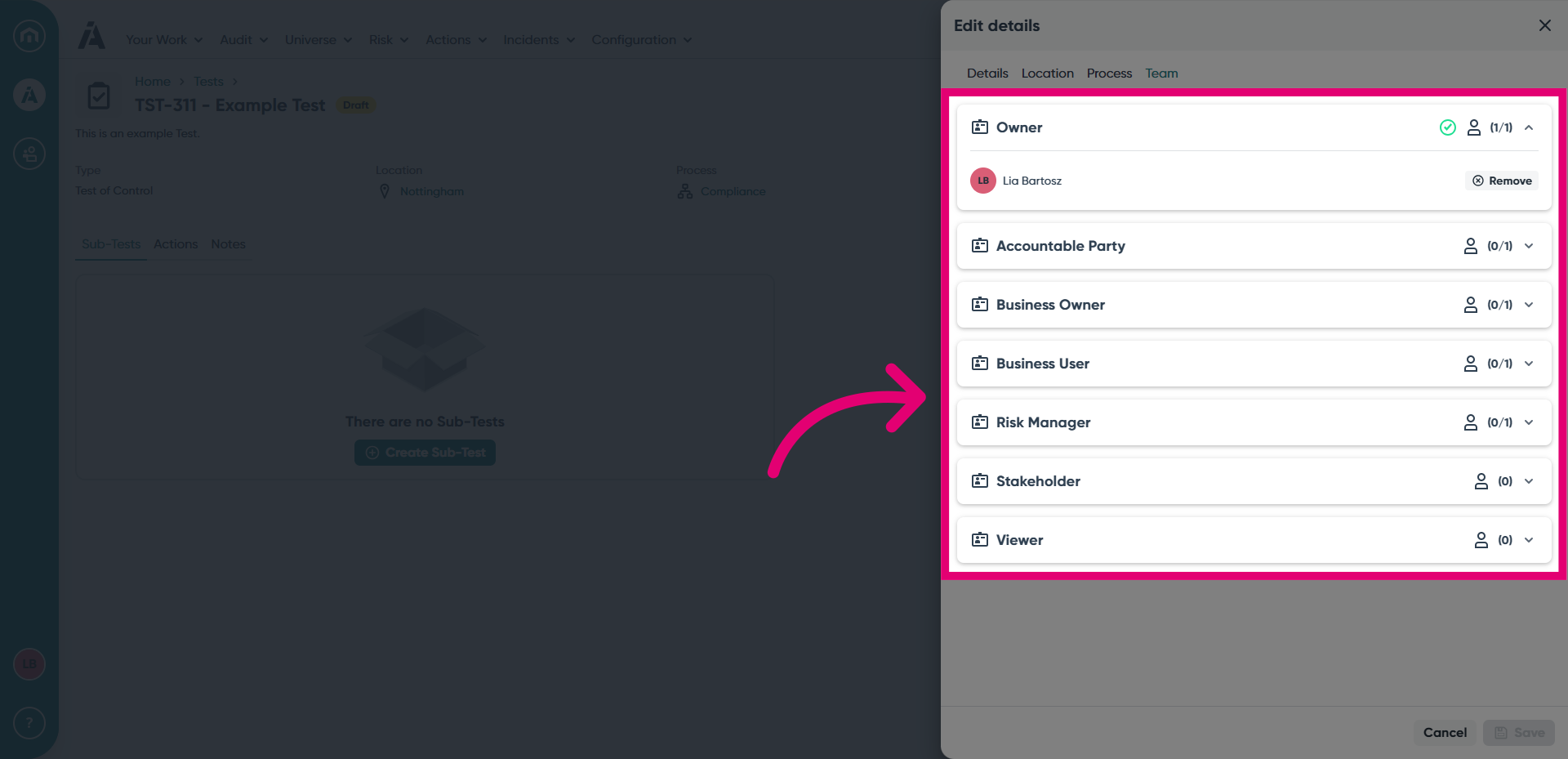
- Amend the test ownership fields, which set who is responsible for the test, in the Team tab.
- Click Save.
- To delete a test, choose the Delete option. You will be asked to confirm that you want to delete the test.
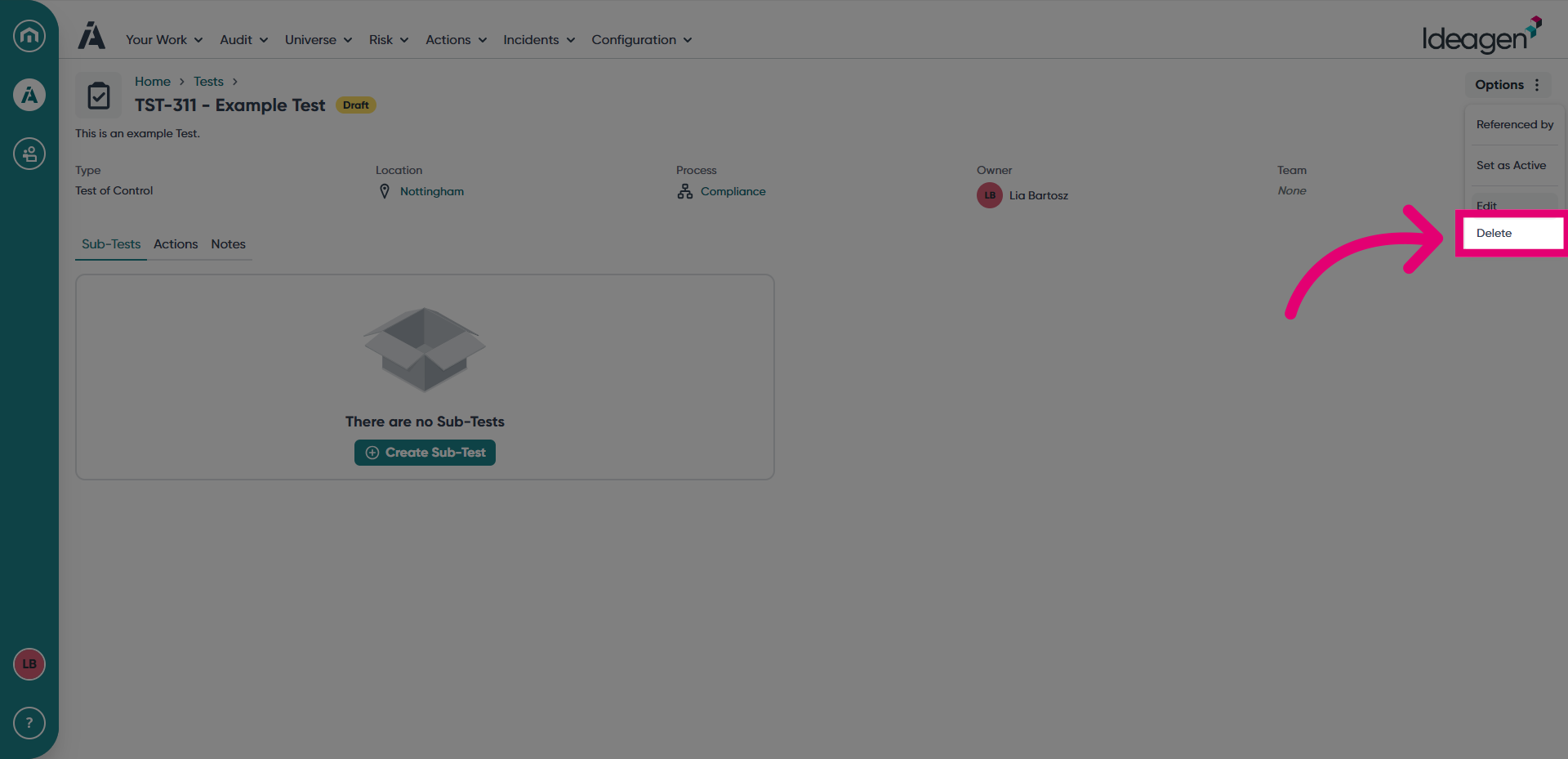
- To archive a test, choose the Set as Archived option.
- Alternatively, you can trigger these actions from the Actions menu to the right of the test record.
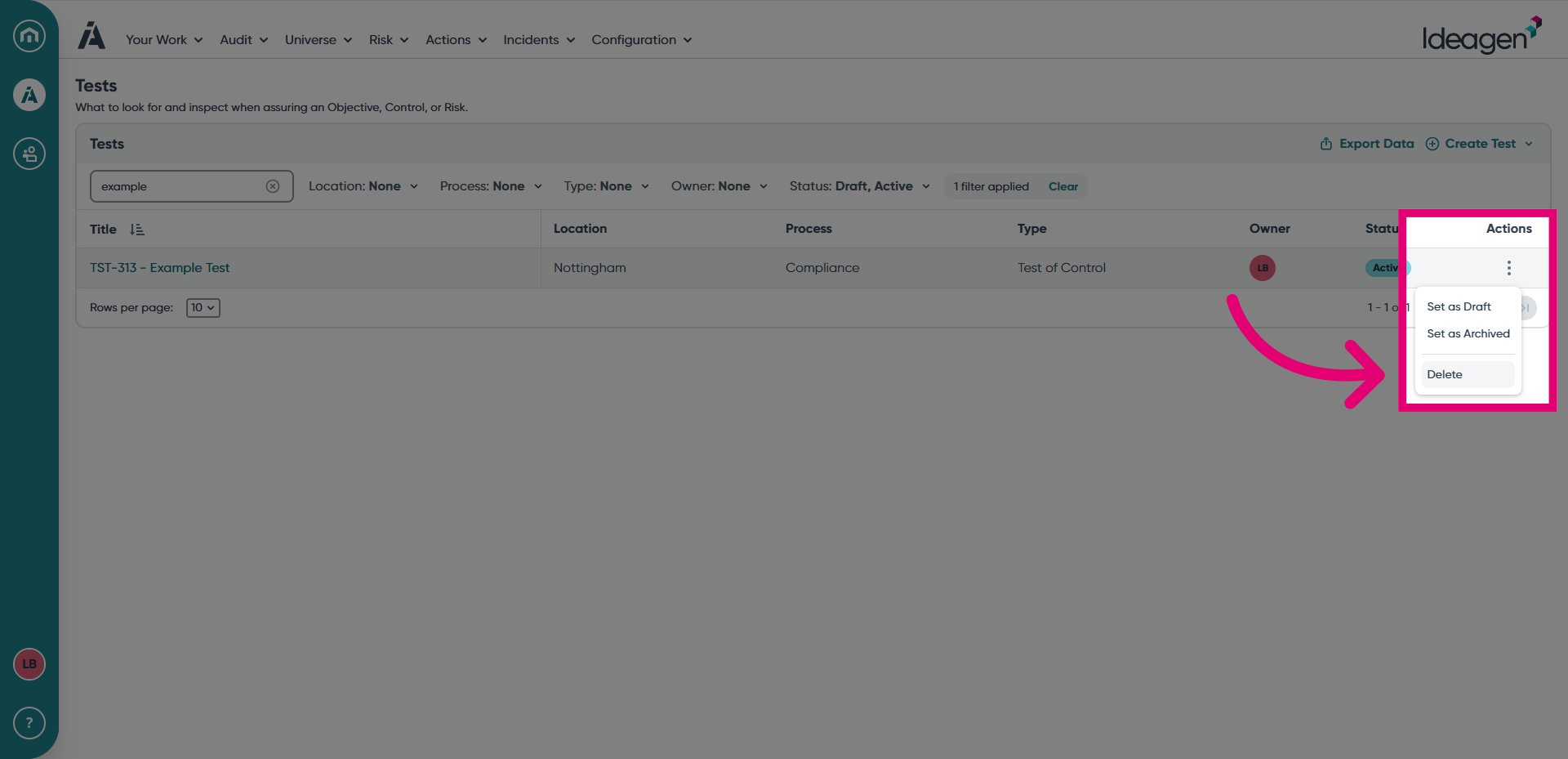
Not seeing the "Set as Archived" option?
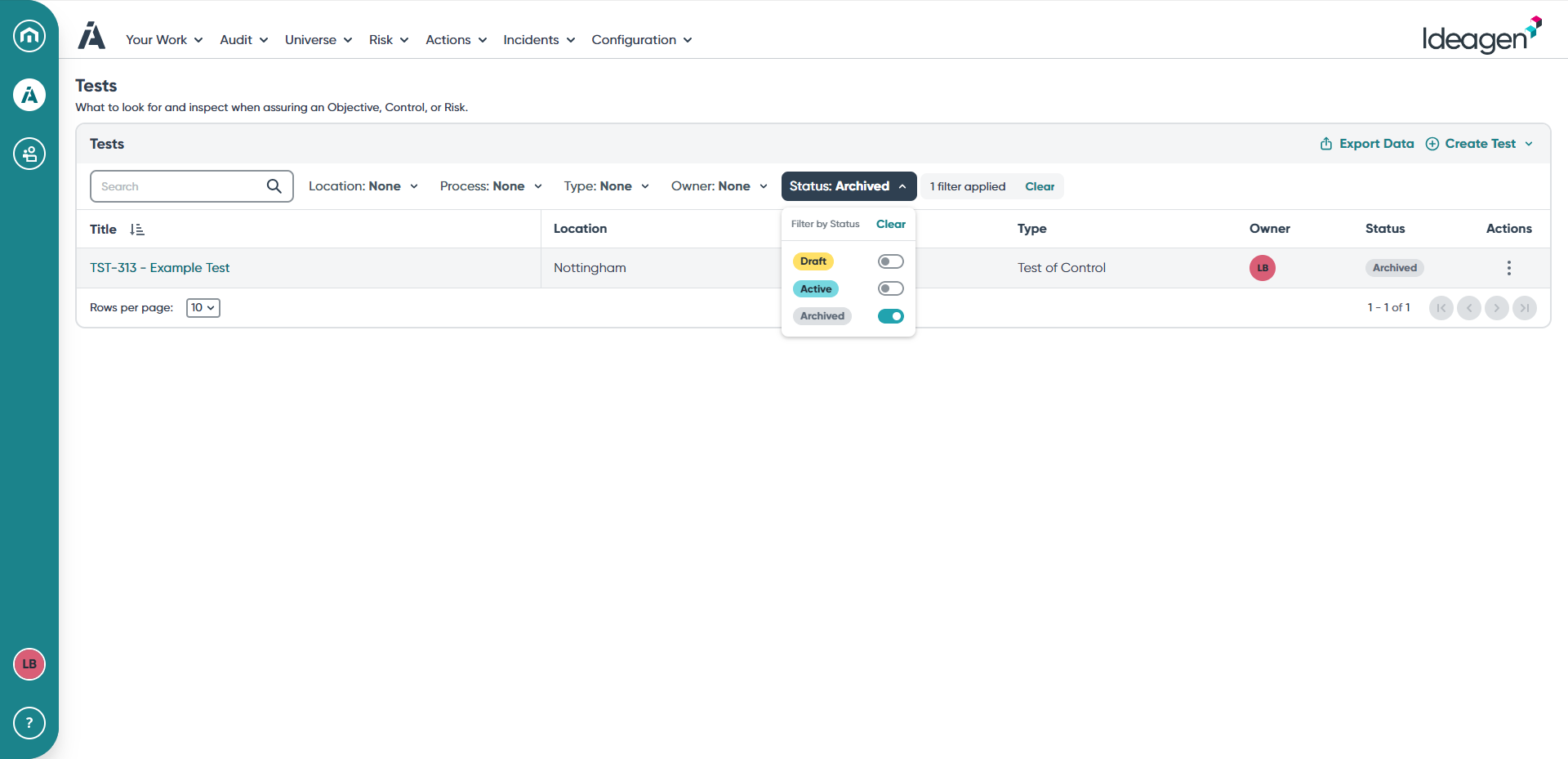
This option will only be available once a test has been activated. - Archived tests will remain on the Tests list when you filter for records with the Archived status.